Download the PowerShell Script
Get the complete Windows Task Scheduler Health & Performance Assessment script
ZIP file contains WTSAnalysis.ps1 – Extract after downloading
Instructions
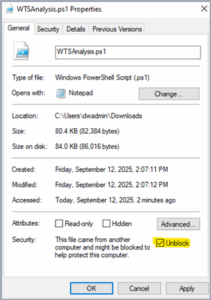
After downloading, you may need to unblock the script so that it may execute.
- Locate the downloaded script.
- Right click the script file and select Properties
- Select the box labeled “Unblock” and click OK.
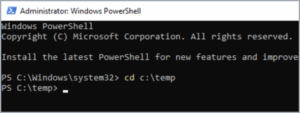
- Launch PowerShell as an administrator.
- Change directories to the folder that contains the downloaded script. (C:\temp in the image below)
- Type the command to execute the script. Make sure to include any parameters you want to change from the parameters table below. See above or inside the script .ps1 file for more examples and information on available parameters and their usage.
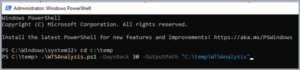
- The script will execute and inform of progress along the way. Depending on size of the Windows Event Log file and how many days of history you are trying to query, the script could take 3-20 minutes to execute.
- Once complete, locate the generated CSV and HTML reports containing the Windows Task Scheduler analysis results.
NOTE: The script captures task run metrics by analyzing events from Windows Event Log. The amount of history available will be dependent on the number of tasks and frequency of their executions as well as the event log size defined on the system for the Microsoft-Windows-TaskScheduler/Operational log (default size: 10MB).
Additionally, capturing the logs can take some time on systems with large log sizes (estimate: 3min / 5000 events). The script will update you on query progress every 5000 events captured.
Overview
The Windows Task Scheduler Health & Performance Assessment script (WTSAnalysis.ps1) provides a comprehensive way to analyze scheduled tasks and their execution history. It helps IT administrators, system engineers, and operations teams identify risks, reliability concerns, and performance issues across one or multiple machines.
The script generates both HTML and CSV reports that summarize task configuration, execution results, and key risk factors, making it easier to spot potential failures and configuration issues.
Prerequisites
- PowerShell 5.1 or higher
- Administrator privileges on the target machine(s)
- For remote analysis: WinRM enabled and appropriate network access
- Access to Windows Event Logs on target systems
Key Features
- Configuration Risk Analysis
- Detects risky configurations such as infinite timeouts, reliance on interactive logons, excessive retry attempts, and tasks running with elevated privileges that could pose security risks.
- Execution & Reliability Metrics
- Tracks total execution attempts, failure counts, success rates, and consecutive failure streaks.
- Identifies tasks that frequently miss their scheduled times or run longer than expected.
- Event Log Analysis
- Examines historical Windows Event Logs to determine task reliability patterns.
- Warns if system logs don’t contain sufficient history to match the requested analysis window.
- Risk Scoring & Levels
- Calculates a weighted risk score for each task based on configuration and performance factors.
- Assigns risk levels: Minimal, Low, Medium, High, Critical.
- Flexible Output
- Produces both CSV files (for data manipulation and spreadsheet analysis) and HTML reports (with sortable, interactive tables).
- Optional inclusion of raw Task XML configuration for deep troubleshooting.
- Remote System Support
- Can analyze both local and remote computers with proper permissions and network connectivity.
Parameters
| Parameter | Description | Default |
|---|---|---|
| DaysBack | Number of days of event logs to include in analysis. Script warns if system logs don’t contain sufficient history for the specified timeframe. | 15 |
| OutputPath | Directory path where HTML and CSV reports will be saved. Creates the directory if it doesn’t exist. | .\TaskSchedulerAssessment |
| ComputerName | Target machine hostname or IP address to analyze. Use “localhost” or “.” for the local computer. | localhost |
| ExcludeSystem | When enabled, excludes Microsoft built-in and system tasks from analysis to focus on custom tasks. | True |
| TaskNameFilter | Filter tasks by name pattern using wildcards (* and ?). Use “*backup*” to find all tasks containing “backup”. | * (all tasks) |
| StatusFilter | Filter tasks by current execution status. Options: All, Failed, Running, Ready, Disabled. | All |
| VerboseOutput | Display detailed progress information in the PowerShell console during script execution. | True |
| MaxRuntimeThresholdMinutes | Tasks running longer than this threshold (in minutes) are flagged as potentially problematic long-running tasks. | 60 |
| HighFrequencyThresholdMinutes | Tasks triggered more frequently than this interval (in minutes) are flagged as high-frequency, which may indicate poor design. | 5 |
| TopNHistoryPerTask | Maximum number of most recent execution events to analyze per task. Helps limit memory usage on systems with extensive task history. | 500 |
| IncludeTaskXml | Include the complete XML configuration of each task in the output reports for detailed troubleshooting. | False |
Example Usage
Basic Local Analysis
Analyzes all tasks on the local machine using default settings.
Remote System Analysis
Analyzes tasks on SERVER01 with 30 days of event log history.
Focused Analysis with Custom Output
Analyzes only tasks containing “backup” in their name, saves results to custom folder, and uses 7 days of history.
Comprehensive Analysis with Verbose Output
Analyzes all tasks including system tasks, shows detailed progress, and includes XML configuration in reports.
Performance Notes
- Analysis typically takes 2-5 minutes for systems with minimal task execution history
- Systems with thousands of tasks or extensive event history may take 10-15 minutes
- Remote analysis adds 30-60 seconds depending on network latency
- Large event logs (>50MB) may significantly increase processing time
Risk Level Interpretation
- Minimal (0-20): Tasks are well-configured and performing reliably. No immediate action needed.
- Low (21-40): Minor issues detected. Consider reviewing during routine maintenance.
- Medium (41-60): Notable concerns present. Should be reviewed and potentially reconfigured.
- High (61-80): Significant problems detected. Requires prompt attention and remediation.
- Critical (81-100): Severe issues that could cause system problems. Immediate action required.
Troubleshooting
- Access Denied errors: Ensure you’re running PowerShell as Administrator
- Remote connection failures: Verify WinRM is enabled and firewall allows connections
- Event log warnings: Some systems may have limited event log retention; consider reducing DaysBack parameter
- Performance issues: Use TaskNameFilter or reduce TopNHistoryPerTask for faster analysis
Output
- CSV Report – Structured data file (TaskSchedulerAssessment_[ComputerName]_[Date].csv) suitable for Excel analysis, filtering, and further data processing.
- HTML Report – Interactive web page (TaskSchedulerAssessment_[ComputerName]_[Date].html) with sortable columns, color-coded risk levels, and detailed task information with actionable recommendations.
Both reports include task names, risk scores, success rates, failure counts, configuration details, and specific recommendations for addressing identified issues.
Download the PowerShell Script
Get the complete Windows Task Scheduler Health & Performance Assessment script
ZIP file contains WTSAnalysis.ps1 – Extract after downloading